Get amaze, get rewarded: Sign up and spend overseas to earn S$25 cashback! Use code AMAZE25. T&Cs apply.

Pay easily.
Pay fast.
With Apple Pay, you can pay quickly and easily with your amaze card right from your iPhone or Apple Watch.

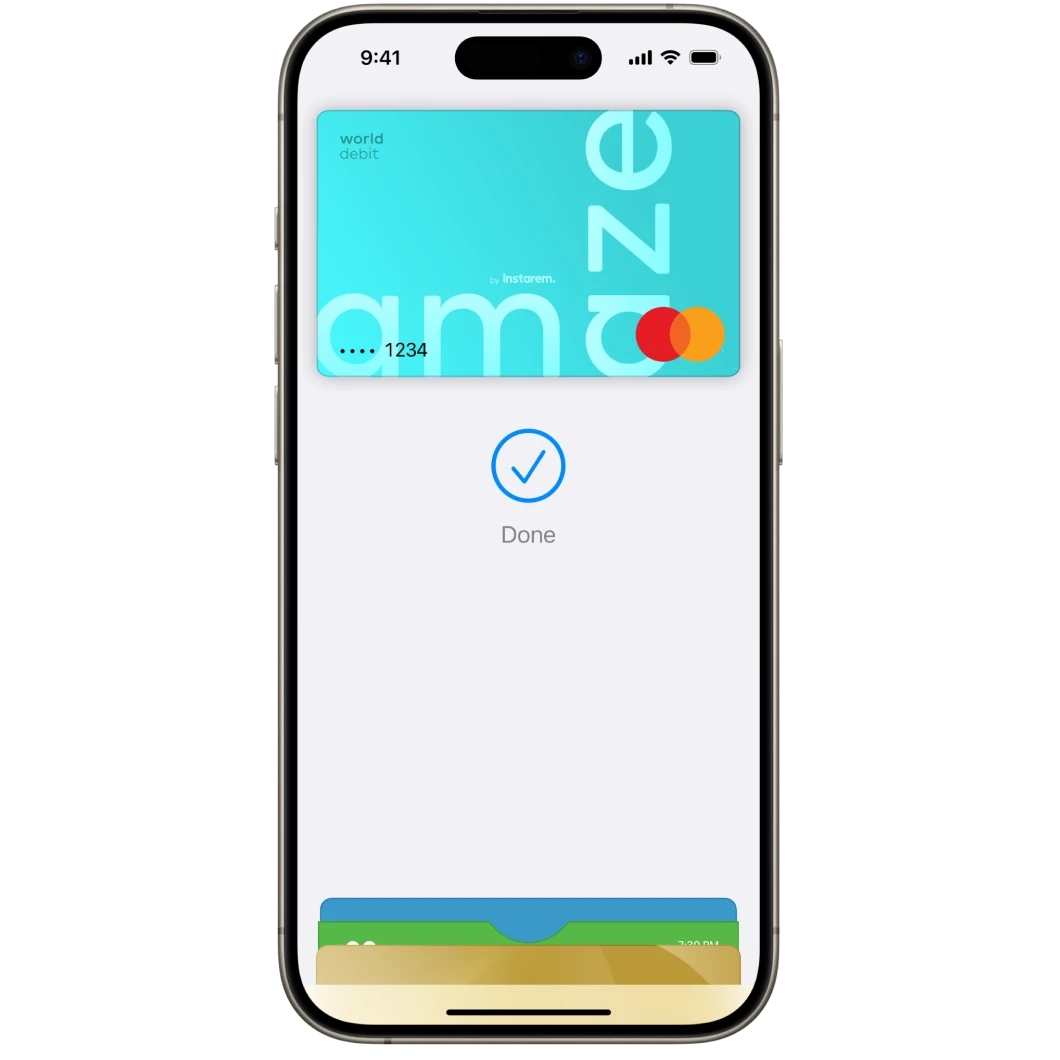
What is Apple Pay?
Apple Pay is an easy, secure and private way to pay using your amaze card with Apple devices like iPhone and Apple Watch. It lets you shop online or in-store without entering card details – just tap, pay, and go! See the full list of compatible Apple Pay devices here.
Why use amaze with Apple Pay?
It’s easy
Just tap to pay at stores, taxis, MRT stations, and other contactless payment points.
It’s fast
No more entering your card details manually. Pay quickly in-app and in person.
It’s rewarding
Earn cashback and KrisFlyer miles on amaze wallet spend, while continuing to earn any rewards available on your linked cards.*
It’s secure
With Face ID and Touch ID on your Apple device, only you can authorise your payments.
How to add amaze to Apple Pay
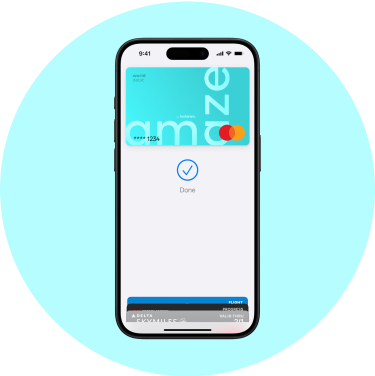
On iPhone
Open the Apple Wallet app and tap the + sign.
Tap ‘Debit or Credit Card’.
Scan your amaze card or enter the details manually.
Verify your card information and enable it for Apple Pay.
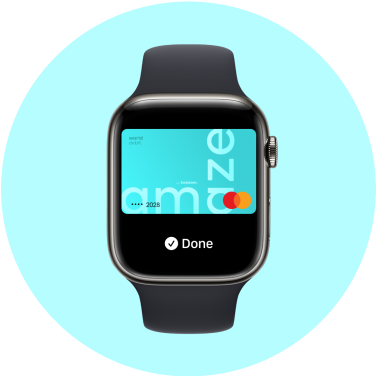
On Apple Watch
Open the Apple Wallet app and tap the + sign.
Tap ‘Debit or Credit Card’.
Scan your amaze card or enter the details manually.
Verify your card information and enable it for Apple Pay.
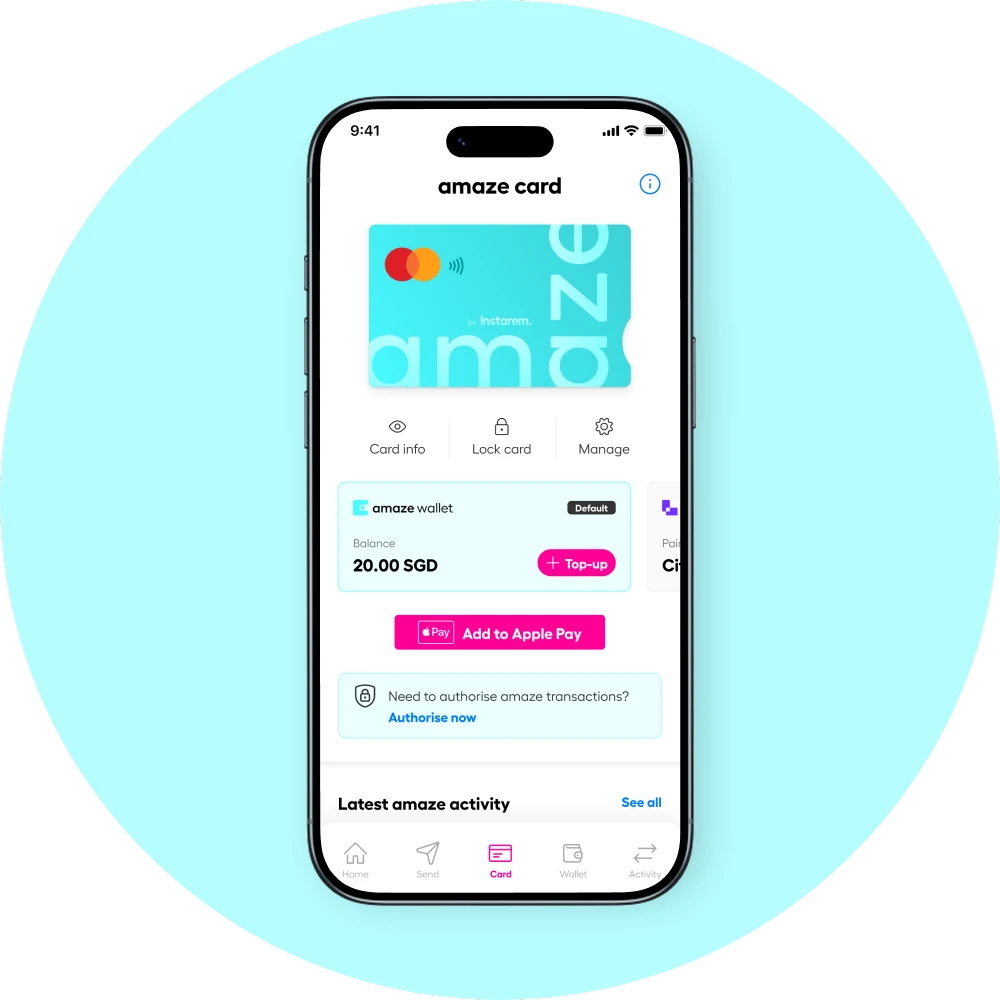
Via the Instarem app
Open the Apple Wallet app and tap the + sign.
Tap ‘Debit or Credit Card’.
Scan your amaze card or enter the details manually.
Verify your card information and enable it for Apple Pay.
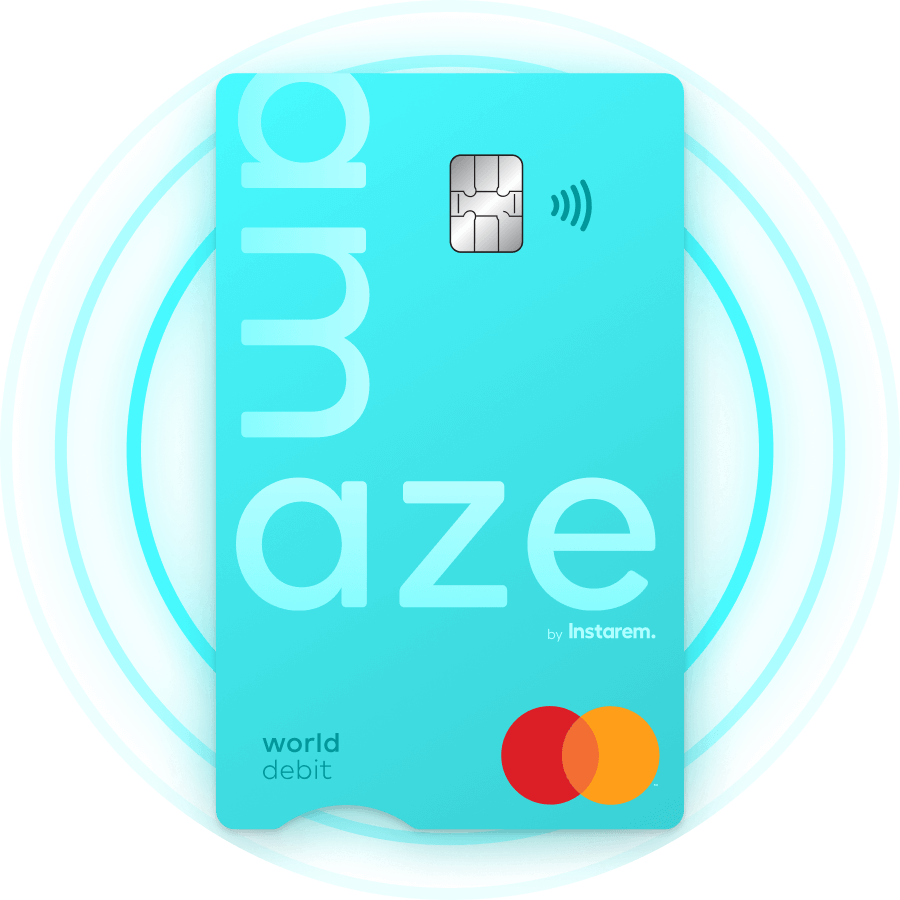
Not using amaze yet?
Sign up and get yours in minutes via the Instarem app.



Have questions?
Yes, you can add your amaze card to Apple Pay. If you’re waiting for your physical amaze card to arrive, you can add your virtual amaze card to Apple Pay and get started with easy contactless payments right away.
Apple, the Apple logo, Apple Pay, Apple Watch, iPhone, Face ID, and Touch ID are trademarks of Apple Inc., registered in the U.S. and other countries.
*amaze T&Cs apply